Tuesday, April 30, 2019

How to Use the FTP Command on Linux

Stylized Linux terminal prompt

The File Transfer Protocol is older than most of our readers, but it’s still going strong. FTP doesn’t have the security of a modern protocol, but you may need to use it anyway. Here’s how to do it.

Warning: Don’t Use FTP Over the Internet

Let’s make this clear right from the outset: The File Transfer Protocol (FTP) dates back to the early 1970s and was written without any regard to security. It does not use encryption for anything. Login credentials like your username and password, as well as the data you download or upload, are transferred in clear text. Anyone along the way can view your secrets. However, FTP still has its uses.

If you’re transferring files within your network, you should be safe–as long as no one on the network is packet-sniffing and eavesdropping on any sensitive documents as you transfer them. If your files aren’t confidential or sensitive in any way, moving them around your internal network with FTP should be fine. Linux has the standard ftp command line program to deal with precisely that scenario.

But definitely don’t use the ftp command to access external resources across the internet. For that, use the sftp command line program, which uses the secure SSH File Transfer Protocol. We’ll introduce both of these programs in this tutorial.

To clarify just why you never want to use FTP over the Internet, take a look at the below screenshot. It shows the FTP password in plaintext. Anyone on your network or between you and the FTP server on the Internet can easily see the password is “MySecretPassword.”

Without the encryption, a malicious actor could modify files you’re downloading or uploading in transit, too.

Network packet trace with clear text password

The ftp Command

Assuming you have a valid account on an FTP site, you can connect to it with the following command. Throughout this article, substitute the IP address in the commands with the IP address of the FTP server you’re connecting to.

ftp  192.168.4.25

Read the remaining 46 paragraphs


from How-To Geek http://bit.ly/2ZMceAz

How to Customize the Taskbar in Windows 10

taskbar showing thumbnail preview of file explorer window

The Windows 10 taskbar works much like previous Windows versions, offering shortcuts and icons for every running app. Windows 10 offers all kinds of ways to customize the taskbar to your liking, and we’re here to guide you through what you can do.

We’ve taken a look at customizing the Start menu and the Action Center in Windows 10. Now, it’s time to tackle the taskbar. With just a little bit of work, you can tweak the taskbar to get it running just how you like it.

Pin Apps to the Taskbar

The simplest way to customize your taskbar is by pinning various apps and shortcuts to it so that you can access them more quickly in the future. There are two ways to do this. The first is to open the program, either from the Start menu or an existing shortcut. When the app’s icon appears on the taskbar to indicate it’s running, right-click the icon and select the “Pin to taskbar” option from the context menu.

pin to taskbar command

The second way to pin an app to the taskbar does not require the app to be running first. Find the app on the Start menu, right-click the app, point to “More,” and then choose the “Pin to taskbar” option you find there. You could also drag the app icon to the taskbar if you prefer doing it that way.

pin to taskbar command from the start menu

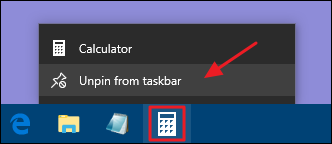
This will immediately add a new shortcut for the app to the taskbar. To remove an app from the taskbar, right-click the pinned app and choose the “Unpin from taskbar” option.

unpin from taskbar command

Pin a File or Folder to Taskbar Jump Lists

Read the remaining 67 paragraphs


from How-To Geek http://bit.ly/2lZmDDz

Monday, April 29, 2019

Geek Trivia: Who Appeared On The Largest Denomination Of U.S. Currency?

Who Appeared On The Largest Denomination Of U.S. Currency?

  1. John F. Kennedy
  2. Herbert Hoover
  3. William Howard Taft
  4. Woodrow Wilson

Think you know the answer?


from How-To Geek http://bit.ly/2J4HWTB

Drones with HD Camera


Syma X5SW-V3 2.4G Wifi FPV RC Quadcopter Drone with HD Real Time Camera $35.98 via eBay https://ebay.to/2UPEcHV

Drones with HD Camera


Holy Stone HS700 FPV Drone with 1080P HD Camera GPS WiFi RC Quadcopter Follow Me $249.99 via eBay https://ebay.to/2PAQXVH

Drones with HD Camera


Holy Stone FPV Drone With 1080P HD Camera WiFi GPS Fellow Me Quadcopter Headless $239.99 via eBay https://ebay.to/2Lem4rJ

Drones with HD Camera


KY101 RC FPV Drone With HD Wifi Camera Altitude Hold Quadcopter 2.4G 4CH 6Axis $35.49 via eBay https://ebay.to/2IMWic5